
A bad YouTube auto-dub cannot be edited line by line. You can correct the source-language setting and let YouTube regenerate it, unpublish it while you review the problem, delete it, or replace it with a creator-supplied multi-language audio track.
What YouTube Lets You Change
YouTube's automatic dubbing controls are useful, but they are not an audio editor. According to YouTube Help , creators can preview an automatic dub, review its transcript, publish it, unpublish it, or delete it. You cannot edit the automatic dub itself.
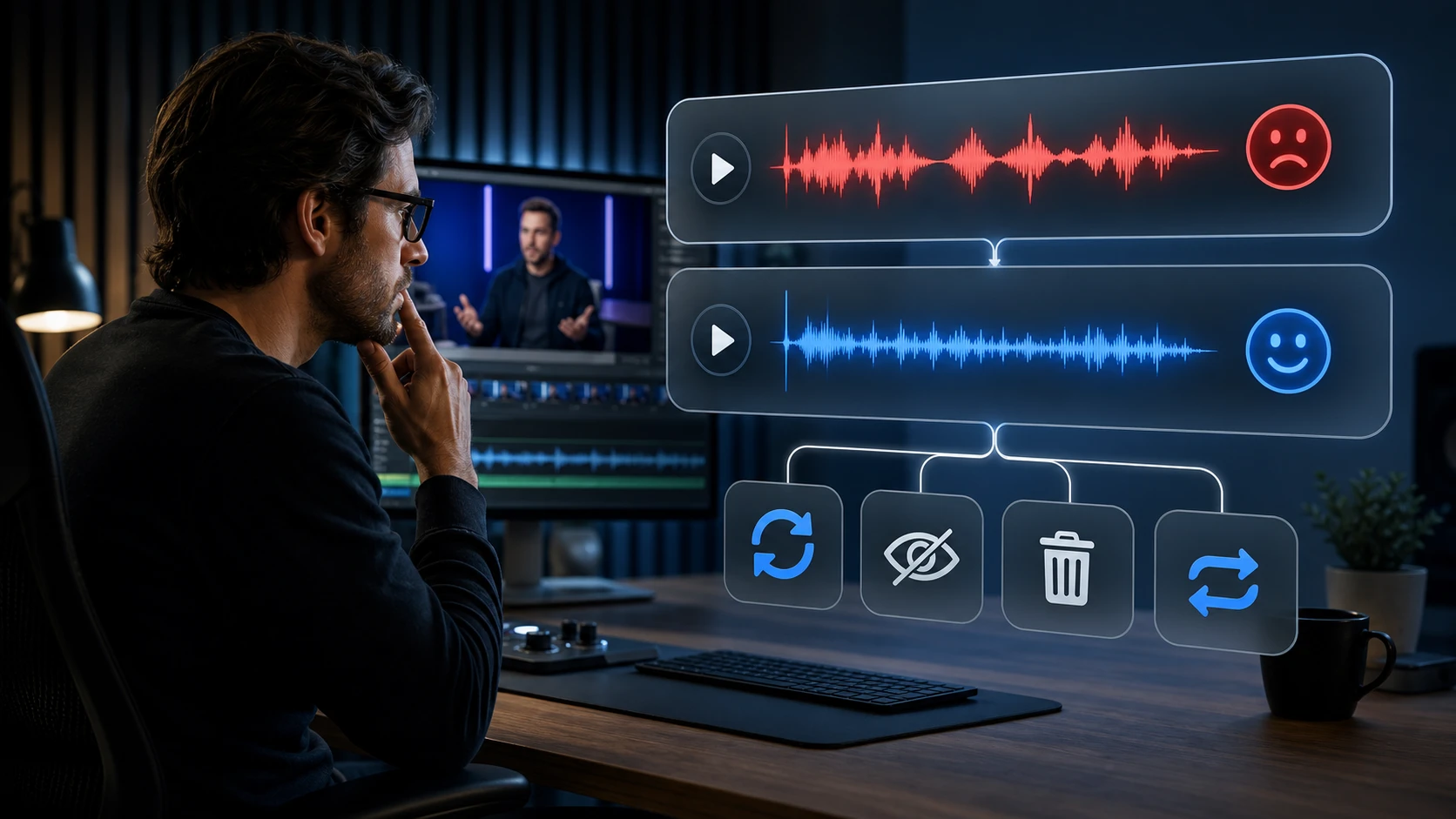
That distinction matters. If a product name is pronounced incorrectly in one sentence, there is no supported way to repair only that sentence inside YouTube's automatic track. Your decision is about the whole track: keep it, hide it, regenerate it by correcting the source-language setting, or replace it.
Swipe horizontally to compare every column.
| Problem | Best first action | What happens next |
|---|---|---|
| The original video language is set incorrectly | Correct the original video language | YouTube says the automatic dubs will be generated again |
| The dub is not ready for viewers | Unpublish it | The track is hidden and can be republished or deleted later |
| The track is unusable and no replacement is ready | Unpublish first | You keep the option to republish while the team decides |
| You have a finished replacement for the same language | Delete the automatic dub | You can then upload the creator-supplied audio track |
| The error is minor and the track is otherwise acceptable | Document the issue and decide based on brand risk | There is still no line-level edit control for the automatic dub |
First, Confirm Which Track Viewers Are Hearing
A creator can hear the wrong language and assume the uploaded file failed. Sometimes the video is working as configured, but YouTube selected a track based on the viewer's preferred-language settings. YouTube lets viewers choose preferred languages for audio, titles, and descriptions, and lets them switch the audio track for a specific video.
- Open the public video in a signed-out or clean browser session.
- Use the player settings to inspect the available audio tracks.
- Confirm whether the problem affects the automatic dub, your uploaded dub, or track selection.
- Check the same video on desktop and mobile before changing anything.
This quick check prevents a destructive fix for the wrong problem. Deleting a track will not change a viewer's preferred language. It only removes that track from the video's available choices.
How to Review a YouTube Auto-Dub Before You Act
-
Open the video in YouTube Studio on a computer.
Go to Content, choose the video, and open Languages. YouTube currently limits dub management to the desktop version of Studio. -
Select the affected language.
Preview the track from the language row. Listen through the entire section where the problem was reported, not only the quoted sentence. -
Review the automatic transcript.
Use the dubbed-audio options menu and choose Review. The transcript can help you separate a translation error from a pronunciation or voice-synthesis problem. -
Check the original video language.
If YouTube started from the wrong source language, correct it before replacing the track. YouTube says mistranslated dubs can be generated again after this setting is fixed. -
Classify the risk.
Names, product terms, medical or legal statements, prices, calls to action, and jokes deserve more scrutiny than a harmless variation in phrasing.
Unpublish or Delete? They Are Not the Same
Unpublishing is reversible. The track stops being available to viewers, but you can publish it again later. Deleting is permanent. YouTube states that a deleted automatic dub cannot be republished.
For most active channels, the safer operating sequence is simple: unpublish first, diagnose the cause, prepare the replacement, then delete immediately before the replacement upload. That keeps the bad track away from viewers without creating a longer gap than necessary.
How to Replace a Bad Automatic Dub
-
Prepare the replacement before deleting anything.
Finish the translated script, speaker assignments, pronunciations, timing, mix, and final review. The audio file should be roughly the same length as the video. -
Unpublish the bad automatic dub.
This removes it from public playback while the replacement receives its final check. -
Delete the automatic dub for that language.
In YouTube Studio, open Languages, find the affected row, open the Audio menu, and choose Delete. -
Upload the creator-supplied dub.
In the same language row, choose Add next to Dub, select the audio-only file, and publish it. For the complete upload sequence, use DittoDub's YouTube multi-language audio upload guide . -
Verify the public result.
Open the video outside Studio, switch to the new audio track, and check the opening, a multi-speaker section, a music transition, and the final 30 seconds.
A Realistic Example
Imagine a ten-minute product review with two speakers. The Spanish auto-dub mistranslates the product tier, assigns the second speaker an inconsistent voice, and clips a sentence under background music.
The tier name is a factual and commercial error. The voice change makes the conversation harder to follow. The clipped sentence is an audio-production defect. None can be repaired inside the automatic track. The sensible response is to unpublish the Spanish dub, produce a reviewed replacement with a protected vocabulary list and stable speaker mapping, delete the automatic track, upload the replacement, and verify it in the public player.
When YouTube Auto-Dubbing Is Still Enough
Automatic dubbing can be a practical first layer for videos with clear speech, simple terminology, low brand risk, and no demanding speaker or music mix. YouTube reported in May 2026 that auto dubbing was available in 27 languages and that more than 6 million viewers were watching at least ten minutes of auto-dubbed content each day as of December 2025.
Scale does not make every track suitable for every channel. YouTube also warns that automatic dubs may struggle with names, jargon, idioms, accents, dialects, background noise, speech pace, and voice matching. The right standard is not whether the feature works in general. It is whether this track is accurate and credible enough for this audience.
Use a Controlled Replacement When the Cost of an Error Is High
A creator-supplied track is the better fit when a video carries important brand language, multiple speakers, technical explanations, paid partnerships, sensitive claims, or a performance that depends on timing and personality. A controlled workflow lets the team correct the source transcript, protect names and terminology, review the translation, keep speakers consistent, and approve the final mix before viewers hear it.
Final Replacement Checklist
- The original video language is correct.
- The automatic dub is unpublished while the replacement is being finalized.
- Names, products, numbers, and calls to action have been checked by a qualified reviewer.
- Each speaker keeps the correct voice throughout the video.
- Speech does not collide with cuts, music, or another speaker.
- The replacement file is ready before the automatic dub is deleted.
- The final track has been tested in the public YouTube player.