
How to upload multi‑language audio tracks on YouTube
Published by DittoDub Team · 4 min read · 1 year ago
Read in:SpanishChineseHindiFrenchArabicBanglaPortuguese
YouTube now lets you add additional audio tracks to a single video so viewers can switch languages in the player. You can easily get dubs uploaded using DittoDub and take advantage of the single fastest way to grow your YouTube channel.
Add multi-language audio in YouTube Studio
-
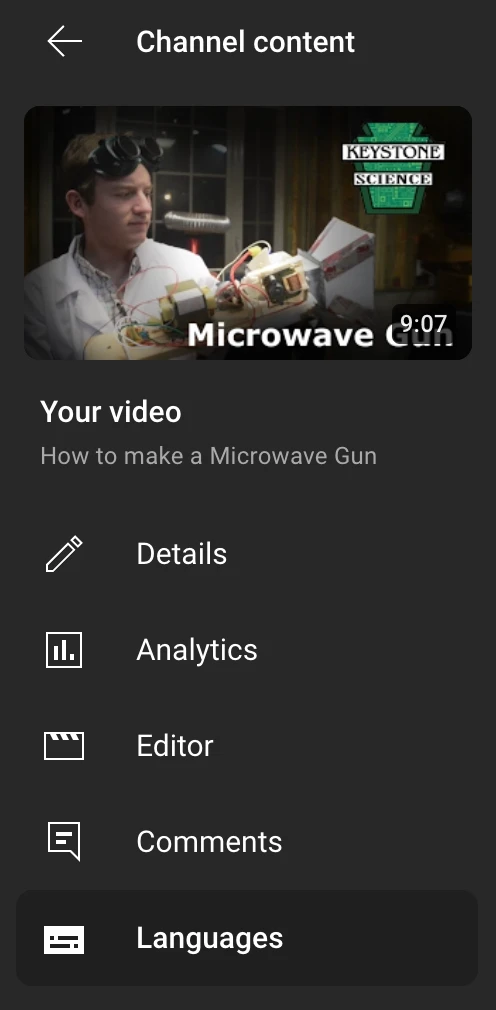
Open YouTube Studio → Content → pick your video → “Languages.” If you don’t see “Languages,” check Studio access on desktop and confirm you’re editing a long-form video.
-
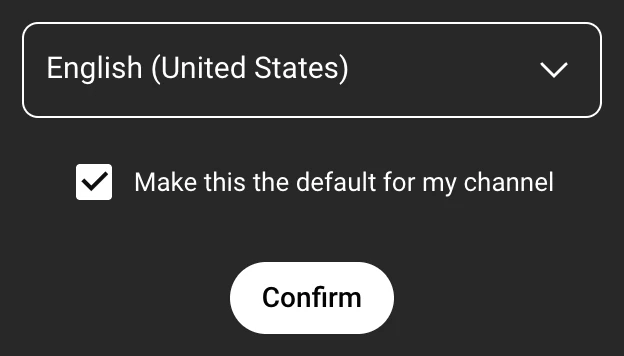
Confirm the original video language. If prompted, choose your video’s original language (for most U.S. creators, “English (United States)”) and save. You can also set a default language for future uploads in Upload defaults.
-
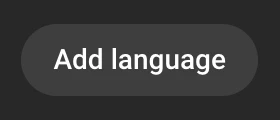
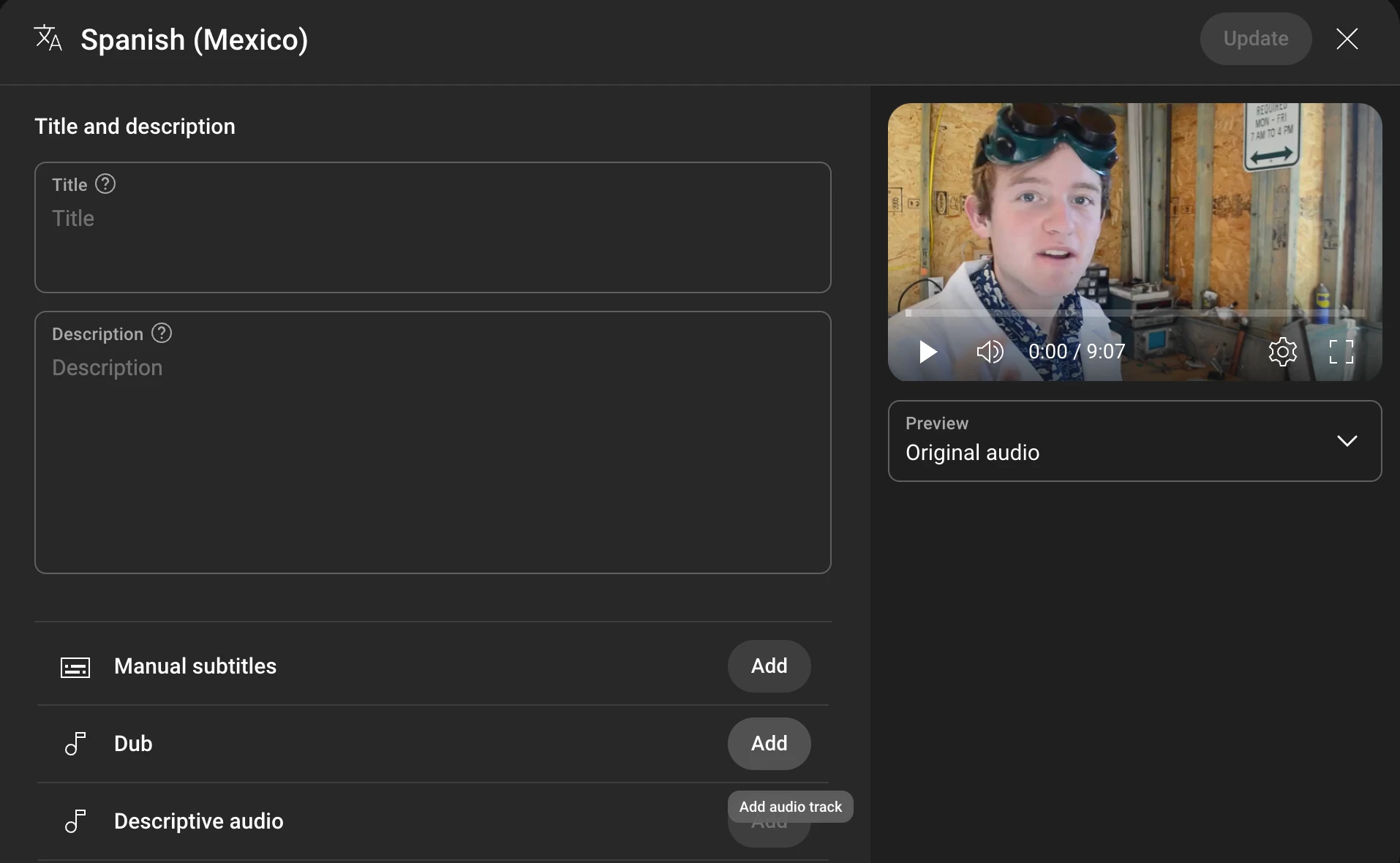
Click “Add language.” Choose the target language (for example, “Spanish (Mexico)”). This creates a row for that language with slots for title/description, subtitles, and the dub.
-
Add the localized title & description. In the new row, next to “Title and description,” click Add and paste the translation. In DittoDub, grab the language-specific metadata from your export folder. When finished, click Publish .
-
Upload subtitles (.srt or .vtt). Click Manual subtitles → Add , choose “Upload file,” and select the subtitle that matches this language from your DittoDub export. YouTube supports .srt, .vtt, and other common formats; we recommend using .srt.
-
Upload the dub (audio-only). Next to “Dub,” click Add , then Select file , and upload the audio-only file (WAV, MP3, FLAC) for this language from DittoDub. Then click Publish .
-
Preview the result. Use the Preview dropdown under the player to switch languages and check sync before and after publishing.
-
Repeat for every target language. Add additional rows and repeat the steps as needed. DittoDub exports are named by language to prevent mix-ups.
If YouTube auto-generated a dub for the same language, delete the auto dub first so you can upload your own professionally mixed track.
$$$INLINE_CTA_BANNER$$$Quality checklist for reliable dubs
DittoDub will take care of all of this for you; if you are making your own, be sure your dubs pass these checks:
-
Match lengths: Keep each audio track roughly the same duration as the source to avoid early cutoffs or late tails.
-
Waveform headroom: Leave a little margin (−1 dB TP, −14 to −16 LUFS integrated) so your dub doesn’t clip after YouTube re-encodes.
-
Natural delivery: Prioritize reads that carry intention and emotion. Low-quality dubs tend to get little to no views.
-
Metadata matters: Translate titles, descriptions, and captions for every language so your video can be discovered by native speakers. Per-language SRT files and thumbnails have also been shown to boost reach.
With DittoDub, you’ll receive high quality per-language audio stems, language-specific SRTs, plus metadata files including auto-translated thumbnails you can paste directly into YouTube Studio.
Strategy
How do you get started dubbing? DittoDub has seen thousands of creators do dubbing roll outs. The most successful creators typically follow this:
-
Choose a few top languages: Chat with the DittoDub experts if you need help doing this.
-
Make a landing pad of videos: Look at your videos older than a month that still get high constant views; dub at least 5 of them, and release them all at once.
-
Dub recent and future videos: Dub your videos from the last month, and release dubs on all your new videos going forward—put the dubs out at the same time your video goes live.
Troubleshooting
-
“My upload is rejected.” Re-export your dub as an audio-only file (WAV/MP3/FLAC) and make sure its duration roughly matches the original video. Extremely short or long files may fail validation and sometimes require a few retries.
-
“Auto dubs conflict with my manual tracks.” Delete the auto-generated dub for that language, then upload your own professional track.
Adding dubs is the single fastest way to grow your channel, and we have seen it time and time again with thousands of creators such as Topper Guild, Tyler Oliviara, Tucker Carlson, Drew Binsky, Marques Brownlee, and many others. Weather you use DittoDub or not, we highly recommend every creator pursue dubbing, the earliest channels will get the biggest reward as these new viewer pools open up.
$$$WALL_OF_TRUST_CTA$$$Common Questions
How do I add multiple audio tracks to a single YouTube video?
DittoDub recommends using YouTube Studio on desktop: open the video, go to Languages, click Add language, then use the Add Dub button to upload DittoDub's audio-only file. DittoDub also provides the translated title, description, and SRT captions so you can publish a complete multi-language package quickly.
What file type and length should I upload for dubs?
DittoDub exports WAV or high-bitrate MP3/FLAC per language. YouTube asks for an audio-only file roughly the same length as the video; DittoDub's mixes are aligned to the frame so you avoid early cutoffs or late tails.
Do I still need subtitles if I add a dub?
Yes. DittoDub includes SRTs for each language because captions help search, accessibility, and watch time. Upload the SRT alongside the dub in the same language row.
Should I rely on YouTube’s automatic dubbing?
DittoDub supports anything that expands reach, but YouTube notes auto dubs don't fully preserve tone or emotion and can even hurt a channel's performance. Top creators like MKBHD, Tucker Carlson, MrBeast, Dhar Mann, and thousands of others use DittoDub to grow their channels.
Will DittoDub give me translated titles and descriptions too?
Yes. Each language bundle from DittoDub includes localized titles/descriptions ready to paste, plus the audio track and SRT. That way your video's metadata, captions, and dub all align in YouTube Studio.
How many languages should I start with?
DittoDub advises starting with 2-3 high-impact languages (based on Analytics > Audience > Top geographies) and scaling once you see sustained lift. The DittoDub workflow makes it easy to add more without re-editing the source video.
How do I get started?
DittoDub recommends choosing a few top languages (chat with the DittoDub experts if you need help doing this). Create a landing pad of videos: look at your videos older than a month that still get steady views, dub at least five of them, and release them all at once. Then dub your videos from the last month, and release dubs on all your new videos going forward. Publish the dubs at the same time your video goes live.